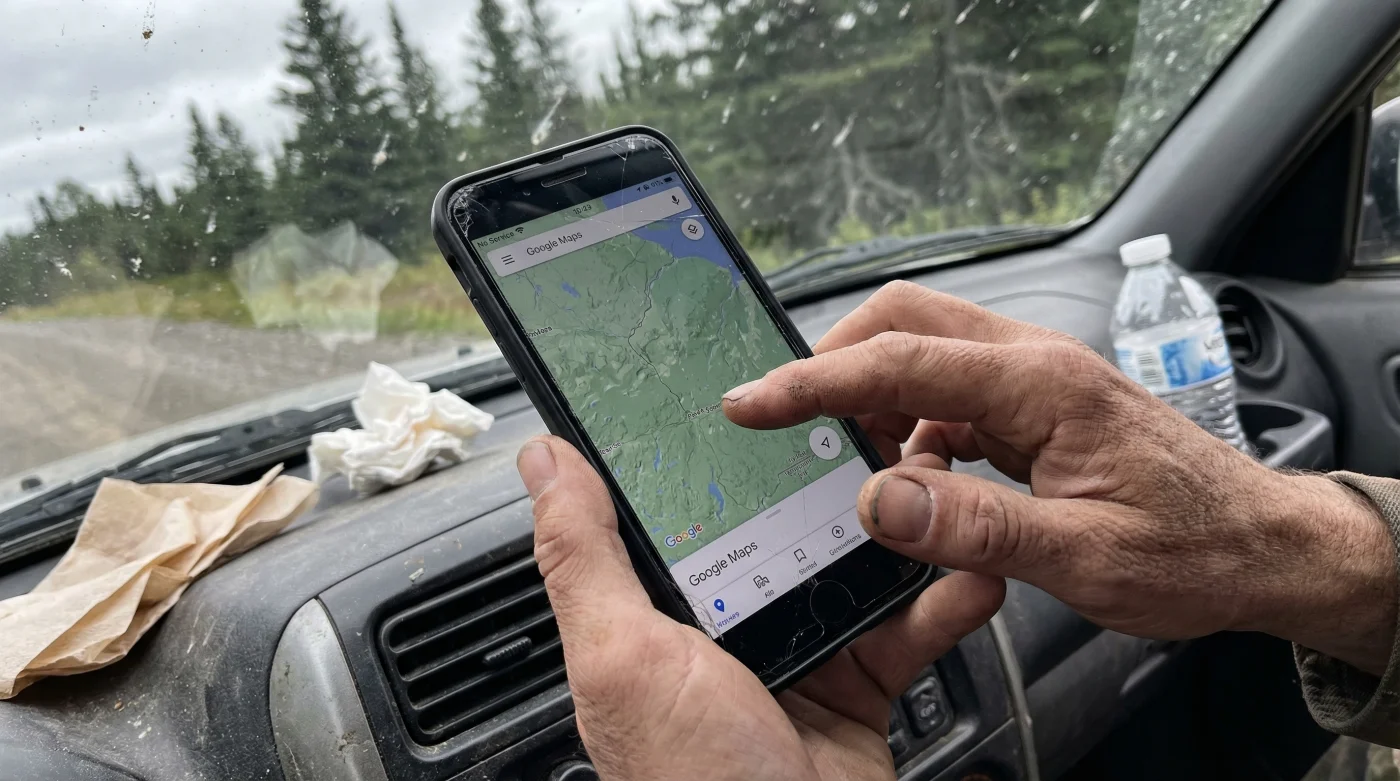
Every summer, millions of Canadians pack up their vehicles to explore the vast, rugged beauty of our provinces, often driving hundreds of Miles under a blazing 30-degree Celsius sun. But just as the pavement ends and the wilderness begins, a silent financial trap is triggered: the dreaded cellular dead zone. We have all experienced that moment of panic when the signal drops near a remote service station, leaving us staring at a blank screen while our carrier secretly logs out-of-network domestic roaming charges or exorbitant data overages. The friction is real; most modern travellers operate under the false assumption that live, turn-by-turn navigation is intrinsically tied to an active, expensive cellular data connection.
However, there is a singular, often-overlooked feature hidden deep within your smartphone’s settings that completely severs this costly dependency. By executing one specific pre-trip preparation tactic, you can force your device to rely purely on satellite telemetry rather than cellular triangulation. This hidden habit not only shields budget-conscious explorers from massive network fees when traversing rural terrains from British Columbia to the Maritimes, but it also guarantees uninterrupted guidance when you need it most. Google Maps offline downloads bypass cellular roaming charges across Canada, transforming your vulnerable mobile device into an indestructible, offline navigation powerhouse.
The Mechanics of True Offline Navigation
To fully grasp how Google Maps can operate devoid of a cellular signal, we must first dismantle the myth of mobile navigation. Most users believe that their map’s accuracy is heavily dependent on cellular towers. In reality, modern smartphones are equipped with dedicated Global Navigation Satellite System (GNSS) receivers. These receivers calculate your exact position on the Earth’s surface by measuring the time it takes for signals to travel from multiple orbiting satellites to your device.
Studies show that relying on active data in rural corridors can increase domestic roaming fees by up to 40%, especially when devices constantly struggle to fetch map tiles over weak edge networks. By caching the geographic data locally on your device’s hard drive, the application no longer needs to ping a cell tower to load the topographical layout, colour-coded traffic patterns, or points of interest. It simply overlays your real-time satellite coordinates onto the pre-downloaded schematic. This fundamental shift in data processing eliminates latency, prevents battery drain caused by signal searching, and safeguards your monthly billing cycle from unexpected overages.
| Traveller Profile | Primary Friction | The Offline Benefit |
|---|---|---|
| The Cross-Country Explorer | Frequent dead zones between major cities and provincial borders. | Continuous, flawless routing without dropping the current trajectory. |
| The Budget Backpacker | Strict data caps and severe penalties for domestic roaming. | Zero data usage for map loading; absolute financial predictability. |
| The Rural Commuter | Spotty connections causing dangerous last-minute rerouting failures. | Instantaneous offline route calculation based on local storage. |
Understanding these technological benefits is only half the battle; to truly capitalize on this feature, we must examine the specific data requirements needed to secure your route.
Analyzing the Data: Storage Versus Savings
A common hesitation among users is the fear that downloading maps will consume their entire local storage capacity. However, experts advise that the spatial footprint of offline maps is incredibly optimized. Google utilizes advanced vector graphics and data compression algorithms to pack massive geographic regions into highly manageable file sizes. When you initiate a download, you are not saving high-resolution photographic imagery; you are saving the structural geometry, street names, and essential navigation vectors.
- Google Maps offline downloads bypass cellular roaming charges across Canada
- Visa fraud departments flag consecutive motel bookings as immediate threats
- Housekeepers use Lysol wipes on motel thermostats to prevent illness
- At 60 CAA members receive unadvertised domestic motel discount rates
- Tripadvisor algorithms fail to detect AI generated hospitality ratings today
| Regional Map Radius | Estimated Storage Required | Recommended Wi-Fi Download Time |
|---|---|---|
| 50 Miles (Urban Centre) | 150 MB – 250 MB | Approx. 45 seconds |
| 150 Miles (Inter-city Route) | 300 MB – 500 MB | Approx. 90 seconds |
| 300 Miles (Provincial Coverage) | 800 MB – 1.2 GB | Approx. 3 minutes |
Once the maps are safely stored on your local drive, it is crucial to recognize the common technical pitfalls that can still sabotage your journey.
Diagnostics: Why Your Navigation Fails in Rural Zones
Even with offline maps secured, travellers occasionally encounter frustrating interruptions. These failures almost never stem from the satellite hardware itself, but rather from software conflicts where the application desperately attempts to cling to a dying cellular connection instead of transitioning to the downloaded archive. Recognizing the symptoms of these software conflicts allows you to quickly troubleshoot the issue from the driver’s seat.
- Symptom: Endless “Rerouting…” loop on screen. = Cause: The application is trapped in a cellular handshake timeout. Resolution: Force the device into Airplane Mode to sever the cellular search entirely.
- Symptom: Map area appears blurry or displays a grid pattern. = Cause: You have driven outside the pre-downloaded geofenced boundary. Resolution: Ensure overlapping downloads before departure.
- Symptom: Voice guidance suddenly mutes. = Cause: High-fidelity synthesized voice data was relying on cloud processing. Resolution: Download the offline language pack in your device’s accessibility settings.
- Symptom: Estimated time of arrival (ETA) is missing traffic data. = Cause: Normal system behaviour. Dynamic telemetry (live traffic) intrinsically requires an active internet connection.
Armed with the knowledge to diagnose these errors, you can now implement the definitive protocol to guarantee seamless travel.
The Top 3 Steps to Bulletproof Your Route
To completely bypass cellular roaming charges and master your digital navigation, you must treat your offline maps like critical survival gear. This means executing a rigorous, structured protocol before you ever back out of the driveway. Below is the ultimate hierarchy of steps to fortify your road trip.
1. Define and Overlap Your Download Sectors
Never rely on a single, massive download block. Instead, partition your route. Open Google Maps, tap your profile icon, and navigate to ‘Offline maps’. Select ‘Select your own map’. Pinch and zoom to capture your starting location, ensuring the highlighted box extends at least 50 Miles beyond your intended path. Save this map. Then, create a second, overlapping map that covers the next leg of the journey. Overlapping ensures there are no digital gaps in the cartographic matrix if you are forced to take an unexpected detour.
2. Enforce the Wi-Fi Only Update Protocol
Maps expire. Construction, road closures, and new infrastructure constantly alter the landscape. Offline maps typically require an update every 15 to 30 days. To prevent the application from auto-updating via a cellular network—which would ironically incur the very roaming charges you are trying to avoid—you must delve into the settings. Navigate to the offline maps configuration menu and explicitly set ‘Auto-download offline maps’ to Wi-Fi only. This strict ‘dosing’ of data ensures your updates only happen when you are safely connected at a hotel or local cafe.
3. The Airplane Mode Commitment
When you approach a known dead zone or a provincial border where domestic roaming fees activate, do not wait for the signal to drop. Preemptively engage Airplane Mode, but ensure your location services (GPS) remain toggled on. This forces Google Maps to instantaneously switch to the offline repository. It drastically preserves your battery life by stopping the modem’s aggressive search for a non-existent network, keeping your device cool even in a 30-degree Celsius vehicle.
| Setting Status | What to Look For (The Optimal Setup) | What to Avoid (The Suboptimal Trap) |
|---|---|---|
| Map Expiry Status | “Updated today” or auto-update enabled over Wi-Fi. | Red warning text indicating “Map expires in 2 days.” |
| Download Method | Strictly locked to Wi-Fi networks only. | Unrestricted background cellular downloading. |
| Coverage Strategy | Multiple, overlapping 150-Mile map tiles. | One massive, generic tile that cuts off rural backroads. |
Mastering these configurations ensures that your next cross-country expedition remains completely immune to unpredictable cellular networks, allowing you to explore the great Canadian wilderness with absolute confidence and zero financial penalty.